IONOS DCD
For more information and scripts related to the deployment, please refer to the ./deployment/fiware directory of the GitHub repository.
Architecture overview
This deployment aims to deploy https://github.com/FIWARE/data-space-connector in the IONOS environment.
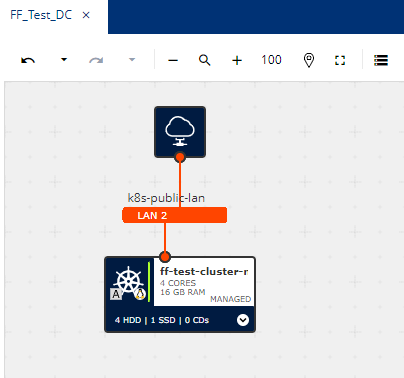
Deployed IONOS Components
-
DataCenter:
- Name FF_Test_DC
-
Kubernetes Cluster:
- Name: FF_Test_Cluster
-
Kubernetes Cluster NodePool:
- Name: FF_Test_Cluster_NodePool
- CPU: Count: 1 AMD, 4 Core
- 16GB RAM
- 50 GB Storage SSD
-
Cluster connection steps:
-
Download kubeconfig.yaml to your local machine from cluster settings
-
Save to kubeconfig.yaml in folder .kube
-
Set KUBECONFIG variable to the route of the dowloaded jubeconfig.yaml file using the command:
export KUBECONFIG=/Users/{user}/.kube/kubeconfig.yaml -
Check default Kubernetes resources using command:
kubectl get all --all-namespaces
-
Deployment
-
Install helm following instructions in https://helm.sh/docs/intro/install/
-
Add the FIWARE helm repository
helm repo add dsc https://fiware.github.io/data-space-connector/ --force-update -
Update your environment: This folder contains a file named fw_env.sh.example. Copy this file to fw_env.sh and set the partner_suffix to the deployment name (e.g. -ntt). Then source the file into your environment
source fw_env.sh -
Install ngix as Ingress Controller
helm upgrade --install ingress-nginx ingress-nginx \
--repo https://kubernetes.github.io/ingress-nginx \
--namespace ingress-nginx --create-namespace -
Install Cert-Manager
-
Add repo
helm repo add jetstack https://charts.jetstack.io --force-update -
Install cert manager
helm install \
cert-manager jetstack/cert-manager \
--namespace cert-manager \
--create-namespace \
--version v1.15.1 \
--set crds.enabled=true
-
-
Deploy cluster isssuers
-
Open
letsencrypt_staging.yamlandletsencrypt_production.yamlfiles and change to your email-address -
After changing email, apply both ClusterIssuers:
kubectl apply -f letsencrypt_staging.yaml
kubectl apply -f letsencrypt_production.yaml -
Check status Ready = True for both of the Clusterissuers
kubectl get clusterissuer --all-namespaces
-
-
Deploy the FIWARE environment
./fw_deploy_all.shThis will deploy the provider namespace, including TM Forum APIs (the marketplace) and the provider components, and a consumer namespace.
-
Fix ingress routes
-
Download wrong ingress file
kubectl get ingress myprovider-apisix-control-plane -n provider -o yaml > myprovider-apisix-control-plane-ingress.yaml -
Open downloaded file with text editor
nano myprovider-apisix-control-plane-ingress.yaml -
Change spec.rules.http.paths.backend.service.port.name and save the file after http-admin to http-admin-api
-
Reupload changed ingress file
kubectl replace -f myprovider-apisix-control-plane-ingress.yaml -
Expected result in terminal: ingress.networking.k8s.io/mydsc-apisix-control-plane replaced
-
Congratulations! You have the FIWARE setup up and running.
Run tests
Before you run the tests, make sure your current environment has all environment variables available. You can do this by running
./fw_env.sh
Then you can follow the documentation in Fiware Setup to run the tests.
Shut down
To undeploy the environment run
./fw_shutdown_all.sh